


For simple questions, that's all it takes. But as soon as an AI agent becomes part of a process - a request, a choice, an approval - things start to wring. Then you no longer want an explanation, but clarity. Overview. Assurance that what you mean actually happens.
Make right there Adaptive Cards the difference.
From talking to acting
AI agents are often judged by how “smart” they respond. But in practice, the real value is not in talking, but in acting. A good agent helps you get something done, not just understand something.
Free text is a powerful starting point here. It helps to recognize intent and understand context. But free text is also ambiguous. People formulate things differently, omit information, or use words that have multiple meanings. This makes interactions error-prone, especially when actions follow.
Adaptive Cards provide structure at exactly that moment. They are the transition from conversation to action.
What are Adaptive Cards?
Adaptive Cards are flexible, cross-platform UI components. That sounds abstract, so let me make it simpler: they're visual “maps” that your agent can show instead of plain text. They work in Teams, Outlook,
SharePoint and Power Apps. They're interactive, contextual, and lightweight. And they work on mobile, desktop, and web without you having to build anything different for each platform. Think of an Adaptive Card as a form that your agent fills out for you. Instead of the user having to type “I want vacation leave from July 15 to 19,” the agent shows a card with a dropdown for leave type, start and end date fields, and a “Submit request” button. The user clicks, selects, confirms, and that's it.
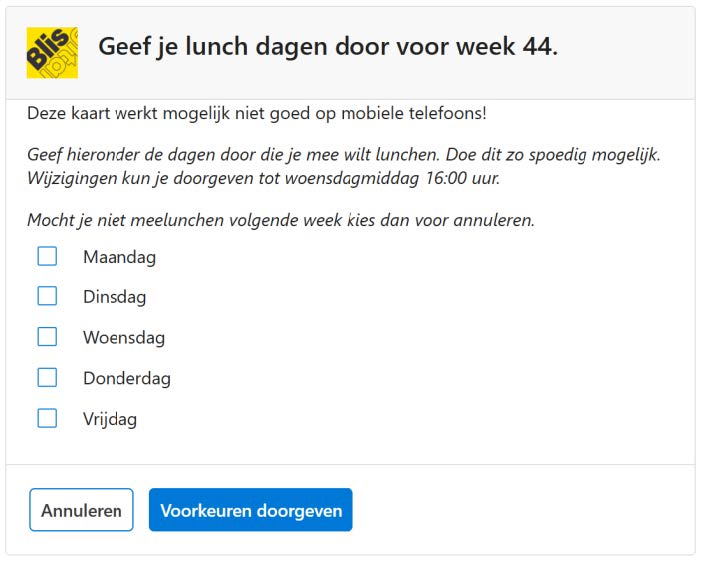
Why you should use Adaptive Cards
There are a few good reasons why Adaptive Cards are not a perk, but an essential part of a well-designed agent:
- More scannable than plain text: People don't read, they scan. A map with headers, bullets, and buttons is clear at a glance. Not a ten-line block of text.
- Richer interaction: A user can take immediate action via buttons, forms, and dropdowns. No back-and-forth talk about what exactly do you mean, just choose and keep going.
- Consistency and reuse: If you've designed a good Card, use it everywhere. In Teams, in Outlook, in your Power App. One design, all channels.
- Accessibility through structured information: This is in line with the previous chapter: not everyone is good at dealing with free text. A structured map with clear fields helps users who have difficulty with open questions.
How do you add Adaptive Cards in Copilot Studio?
Adding an Adaptive Card in Copilot Studio isn't rocket science. You go to the “Send message” step in your conversation flow and select “Adaptive Card” instead of plain text. Then you have two options: you use a standard template or design one yourself via the Adaptive Card Designer.
Die Designer is a visual tool where you drag elements onto your map: text fields, buttons, images, dropdowns. You can see what it looks like right away. And when you're happy, generate the code and paste it into Copilot Studio. No manual JSON typing, just click and drag. Once your Card is there, you can link data to it. For example, the user's leave balance, their manager's name, today's date. You do this via variables that you have retrieved from Dataverse or another data source. The Card fills itself with up to date information, every time.
And the great thing? You can also trigger Adaptive Cards from Power Automate flows. Suppose a manager receives a leave request. Instead of a boring email, he gets a Card in Teams with all the details and two buttons: Approve or Reject.
Tips for strong Cards
Creating an Adaptive Card is easy. Making a good one requires a little more attention. Here are a few things that make a difference:
- Design visually, think interactively: A Card is not a static image. It is an interface. Make sure buttons are clear, labels are correct and the flow is logical. Test how it feels to work with it.
- Reuse cards via Power Automate or component libraries: If you have a good Card, save it. Use it in other flows, in other agents. No duplication of work, but consistency.
- Test on mobile and desktop: Cards adapt, but not always perfectly. See how your Card looks on a small screen. Are buttons big enough? Is text readable? If not, adjust.
- Keep it simple: A Card with ten fields and 15 buttons is overwhelming. Focus on what the user needs right now. The rest can be done later.
Good AI agents combine language and structure
Adaptive Cards show that successful AI agents are more than smart conversations. They are a combination of language, design and technology. Conversation helps to understand intent. Interface helps to complete actions correctly and pleasantly.
Those who build AI agents without paying attention to that balance are building solutions that are theoretically smart but are practically deficient. Whoever does find that balance builds agents that people trust and keep using.
Want to see how Adaptive Cards fit into the bigger picture of architecture, governance, and testing? In our e-book “Building AI Agents on Power Platform” show how all these choices come together into working solutions.
Read the e-book and build AI agents that don't keep talking but actually get things done.
Or read the other blogs we wrote about this:
7 architectural principles for AI agents and From idea to working agent: step-by-step plan.
FAQ
Frequently asked questions
We'd be happy to answer those right away. If your question isn't listed, please feel free to contact us.